Git Branching Strategies for Small Development Teams
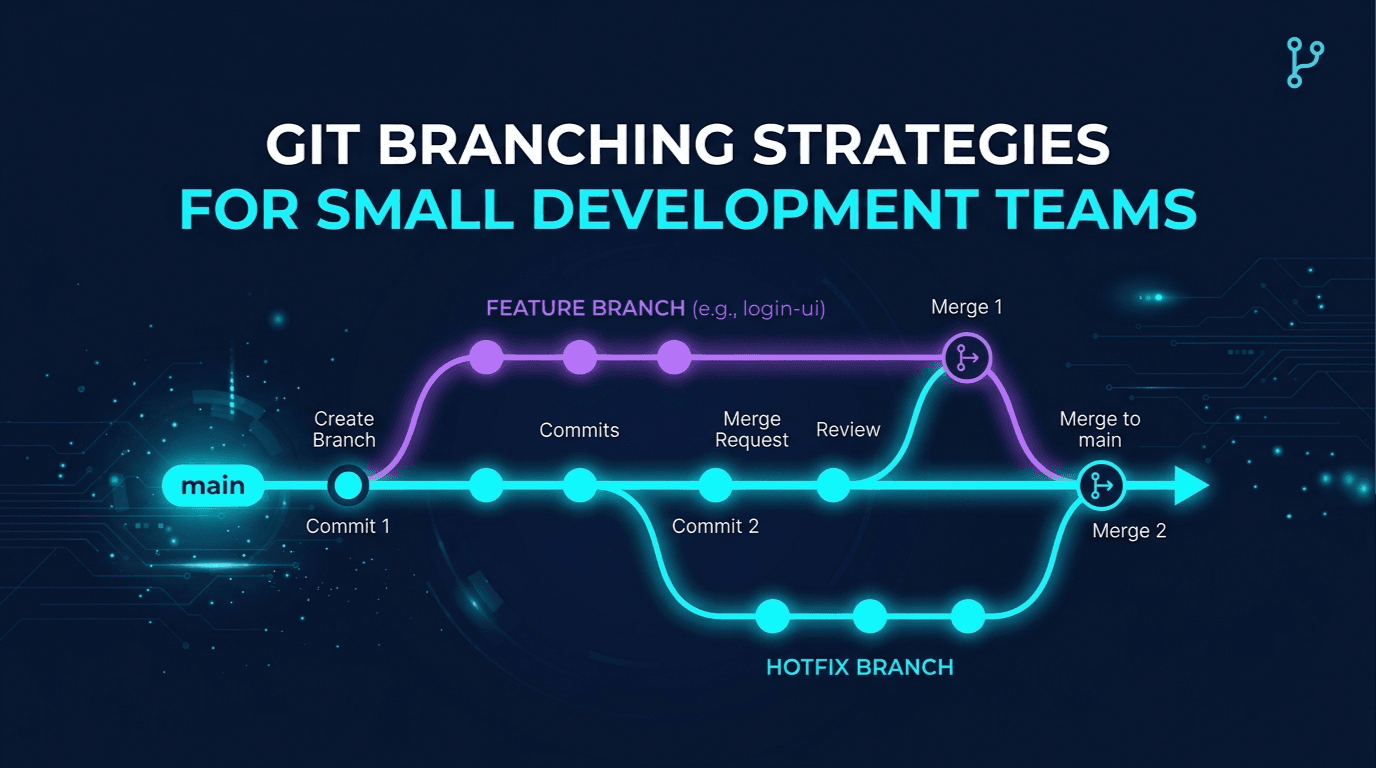
Git Branching Strategies for Small Development Teams
When multiple developers work on the same project, managing code changes becomes just as important as writing the code itself.
Imagine two developers working on the same application. One is building a login feature, while the other is fixing a payment bug. If both modify the same codebase without a clear workflow, their changes can conflict or accidentally break existing functionality.
This is where Git branches become useful.
Branches allow developers to work independently, review changes before merging them, and keep the main codebase stable.
In this guide, we'll explore how Git branching works, compare common branching strategies, and build a practical workflow for small development teams.
What Is a Git Branch?
A Git branch is a movable reference to a commit in a Git repository.
In simple terms, a branch gives you a separate line of development. You can make commits on that line without immediately changing the history of another branch.
For example:
main
 |
 A --- B --- C
              \
               D --- E  feature/login
Here:
mainrepresents the main development line.A,B, andCare existing commits.DandEare commits made on the login feature branch.
The feature branch allows the developer to work on login functionality without immediately adding those commits to main.
Git branches are lightweight, so creating a branch is generally inexpensive.
Why Do Teams Use Branches?
Branches help teams separate work and manage changes safely.
1. Work on Features Independently
A developer can build a new feature without mixing unfinished changes into the main branch.
2. Fix Bugs Safely
A bug fix can be developed and tested independently before being merged into the main codebase.
3. Review Code Before Merging
Teams can open pull requests on GitHub or merge requests on GitLab to discuss and review changes before integration.
4. Run Automated Checks
CI workflows can run tests, linting, and builds against proposed changes before they are merged.
5. Reduce Unnecessary Conflicts
Branches do not eliminate merge conflicts, but a clear workflow helps developers understand which changes belong together and integrate them deliberately.
Common Git Branching Strategies
There is no single branching strategy that fits every team. The right approach depends on release frequency, team size, deployment requirements, and project complexity.
Let's look at four common approaches.
1. Feature Branch Workflow
The Feature Branch Workflow is a simple approach in which each feature or bug fix is developed on its own branch.
For example:
main
 |
 +--- feature/user-login
 |
 +--- feature/profile-page
 |
 +--- fix/payment-error
Each branch represents a specific task.
How It Works
- Start from an updated
mainbranch. - Create a branch for your task.
- Implement the changes.
- Commit your work.
- Push the branch to the remote repository.
- Open a pull request.
- Review and test the changes.
- Merge the branch after approval.
Example
Suppose you're building a Node.js API and need to add authentication.
Create a feature branch:
git switch main
git pull origin main
git switch -c feature/user-auth
Make your changes and commit them:
git add .
git commit -m "feat: add user authentication"
Push the branch:
git push -u origin feature/user-authNow you can open a pull request on GitHub.
After the changes are reviewed and approved, merge the pull request using your team's chosen merge method.
Best for: Small teams, student projects, web applications, mobile applications, and most projects that release frequently.
2. GitHub Flow
GitHub Flow is a lightweight workflow built around a main branch, short-lived working branches, and pull requests.
The idea is simple: keep main in a healthy state and integrate small changes frequently.
A typical workflow looks like this:
main
 |
 +--- feature/search
 |          |
 |       Pull request
 |          |
 +----------+----> main
                       |
                       v
                    Deploy
The Workflow
Step 1: Create a branch
git switch main
git pull origin main
git switch -c feature/search
Step 2: Make small commits
git add .
git commit -m "feat: add search endpoint"
Step 3: Push your changes
git push -u origin feature/searchStep 4: Open a pull request
Explain what changed, why the change is needed, and how it was tested.
Step 5: Review and validate
Other developers review the code. Automated checks run to catch problems.
Step 6: Merge and deploy
Once the required checks and approvals pass, merge the branch. The application can then be deployed through the team's CI/CD pipeline.
Why Is GitHub Flow Popular?
- It is easy to understand.
- It avoids maintaining many long-lived branches.
- It supports continuous integration.
- It works well with pull requests and automated testing.
- It fits teams that release small changes frequently.
Best for: Small teams, web applications, APIs, SaaS products, and projects with continuous delivery.
For many small teams, this is an excellent starting point.
3. Git Flow
Git Flow is a more structured branching model that uses dedicated branches for development, releases, and urgent production fixes.
A traditional Git Flow setup commonly includes:
| Branch | Purpose |
|---|---|
main | Holds production release history |
develop | Integrates changes for the next release |
feature/* | Develops individual features |
release/* | Prepares a release |
hotfix/* | Fixes urgent production issues |
A simplified structure looks like this:
main -------------------- Release 1.0 -------- Release 1.1
                             ^                      ^
                             |                      |
develop --- feature/a -------+---- feature/b -------+
                             |
                         release/1.1
The diagram is conceptual. Actual Git Flow history depends on how the team creates, merges, and closes branches.
How It Works
- Developers create feature branches from
develop. - Completed features are merged into
develop. - A release branch is created when the team prepares a release.
- Release testing and final fixes happen on that branch.
- The release is merged into
mainand back intodevelop. - Urgent production bugs can be fixed through hotfix branches.
Example Branch Names
feature/user-authentication
feature/payment-integration
release/2.0.0
hotfix/login-crash
Advantages
- Clear separation between development and production releases.
- Useful for scheduled releases.
- Provides a defined place for release preparation.
- Can support products that maintain multiple released versions.
Disadvantages
- More branches and merge steps to manage.
- Changes may take longer to reach production.
- Long-lived branches can drift apart.
- It can be unnecessarily complex for teams that deploy continuously.
Best for: Projects with scheduled releases, strict release management, or products that need to maintain multiple release versions.
Git Flow is not automatically better just because it has more rules. Use it when those rules solve a real problem.
4. Trunk-Based Development
Trunk-Based Development is an approach in which developers integrate small changes into a shared main development branch, often called the trunk.
Some teams commit directly to the trunk; others use very short-lived branches and pull requests.
The key idea is to keep branches short-lived and avoid large, long-running feature branches.
A simplified example:
main: A --- B --- C --- D --- E
           /     \       \
       small     small    small
       change    change   change
Each change is integrated quickly rather than being developed separately for weeks.
How It Works
- Break work into small changes.
- Integrate changes frequently.
- Run automated tests on each change.
- Use feature flags when functionality needs to remain hidden.
- Monitor the application after deployment.
A feature flag allows code to be deployed without immediately exposing the feature to all users.
For example, a new dashboard may be deployed while remaining disabled until the team is ready to enable it.
Advantages
- Reduces long-running branch divergence.
- Encourages frequent integration.
- Supports continuous delivery and deployment.
- Helps teams discover integration problems earlier.
Disadvantages
- Requires reliable automated testing.
- Requires disciplined, small changes.
- Feature flags need careful management.
- Direct commits to a shared branch may be unsuitable for teams that require pull-request review.
Best for: Teams practicing continuous integration, frequent releases, and strong automated testing.
Trunk-Based Development is not the same as allowing everyone to push unchecked code to production. Teams can still require pull requests, protected branches, and deployment approvals.
Which Branching Strategy Should You Choose?
Here's a quick comparison.
| Strategy | Complexity | Typical use |
|---|---|---|
| Feature Branch Workflow | Low | Isolated feature and bug-fix development |
| GitHub Flow | Low | Small teams releasing frequently |
| Git Flow | Higher | Structured release cycles |
| Trunk-Based Development | Low to moderate, with strong testing requirements | Frequent integration and continuous delivery |
For a small development team, a good default is GitHub Flow with short-lived feature branches and pull requests.
It provides a clear process without requiring separate development and release branches.
Consider Git Flow when your release process genuinely requires more structure. Consider Trunk-Based Development when your team is ready for frequent integration and has strong automated checks.
A Practical Branch Naming Convention
Consistent branch names make it easier to understand what each branch is for.
A simple convention is:
feature/short-description
fix/short-description
hotfix/short-description
docs/short-description
refactor/short-description
test/short-description
Examples:
feature/user-profile
feature/refresh-token
fix/payment-timeout
docs/api-setup
refactor/auth-service
test/user-registration
If your team uses issue tracking, you can include the issue number:
feature/142-user-profile
fix/208-payment-timeout
The exact naming convention is less important than using it consistently across the team.
Merge Commits, Squash Merges, and Rebasing
Branching strategies also involve decisions about how commits are integrated.
1. Merge Commit
A merge commit combines the histories of two branches and preserves the fact that they were merged.
git switch main
git merge feature/user-auth
A merge commit can preserve the feature branch's individual commits and its integration history.
2. Squash Merge
A squash merge combines the changes from a branch into a single commit on the target branch.
This is useful when a feature branch contains many temporary commits such as:
fix typo
try another approach
fix test
final changes
Squashing can keep the main branch's history easier to scan.
On GitHub, you can choose Squash and merge when repository settings permit it.
3. Rebase
Rebasing replays commits onto a different base commit, creating new commit identities.
For example:
git switch feature/user-auth
git fetch origin
git rebase origin/main
This can make a feature branch appear as if it started from a more recent point in main.
Important: Avoid rebasing shared commits that other developers already depend on unless your team understands and agrees on the consequences. Rebasing rewrites commit history.
Which Should a Team Use?
Pick a merge policy that matches your team's goals.
- Use merge commits when preserving branch integration history matters.
- Use squash merges when you want one logical commit per pull request.
- Use rebasing to update a working branch or maintain a linear history when appropriate.
Consistency matters more than choosing one universally perfect method.
How to Handle Merge Conflicts
A merge conflict occurs when Git cannot automatically reconcile overlapping changes.
For example, two developers edit the same lines in a file. Git may need a human to decide which version should remain.
A conflict can look like this:
<<<<<<< HEAD
const timeout = 5000;
=======
const timeout = 10000;
>>>>>>> feature/api-timeout
The markers indicate the competing changes.
To resolve the conflict:
- Read both versions carefully.
- Decide what the correct code should be.
- Remove the conflict markers.
- Run relevant tests.
- Stage the resolved file.
- Complete the merge or rebase as appropriate.
For example:
git add src/config.jsIf you were merging, complete the merge according to Git's instructions. If you were rebasing, continue with:
git rebase --continueDo not blindly accept one side of a conflict. The correct resolution may require combining both changes.
The best way to reduce difficult conflicts is to integrate small changes frequently and communicate when multiple developers are modifying the same area.
Pull Request Best Practices
A pull request is a request to review and integrate changes into another branch. It is a collaboration mechanism, not merely a button to merge code.
A good pull request should include:
A Clear Title
For example:
feat: add refresh token supportA Useful Description
Explain:
- What changed?
- Why was it needed?
- How was it tested?
- Are there any configuration or migration steps?
Small, Focused Changes
A pull request that changes one logical feature is usually easier to review than one that modifies unrelated parts of the application.
Automated Checks
Run tests, linting, builds, and other required checks before merging.
Meaningful Review
Review correctness, security, readability, error handling, and maintainability—not just formatting.
A Clear Merge Policy
Agree on whether the team uses squash merges, merge commits, or another approach. Protect important branches and require approvals where necessary.
Common Branching Mistakes
1. Working Directly on main Without a Clear Policy
Direct changes can be acceptable in some workflows, but teams should decide intentionally. For projects requiring review, use protected branches and pull requests.
2. Keeping Feature Branches Open for Too Long
Long-lived branches become harder to integrate as main changes.
Break large features into smaller pieces and integrate them frequently.
3. Creating Branches Without Updating the Base
Starting from an outdated local branch can introduce avoidable integration work.
Before creating a branch, fetch or pull the latest changes according to your team's workflow.
4. Using Unclear Branch Names
Names such as test2, new-code, and final-fix do not explain the purpose of the work.
Use task-oriented names that teammates can understand.
5. Merging Without Running Tests
A successful merge only means Git integrated the changes. It does not prove the application behaves correctly.
Use automated checks and test important behavior.
6. Treating Branches as a Backup System
A branch is not a substitute for reliable backups, remote repository hosting, or good commit practices.
Push important work to the remote repository and keep sensitive information out of commits.
7. Overengineering the Workflow
A small team rarely needs a complex collection of permanent branches without a clear reason.
Start with a simple workflow and add rules only when they solve an actual problem.
Recommended Workflow for a Small Team
For a typical Node.js, React, or React Native project, the following process is a practical starting point:
1. Update local main
        |
        v
2. Create a task-specific branch
        |
        v
3. Implement and commit changes
        |
        v
4. Push the branch to GitHub
        |
        v
5. Open a pull request
        |
        v
6. Review code and run CI checks
        |
        v
7. Merge after required checks pass
        |
        v
8. Deploy through the release pipeline
        |
        v
9. Monitor the application
Keep the process straightforward:
- Use
mainas the primary shared branch. - Create short-lived branches for features and fixes.
- Use pull requests for review when the project requires them.
- Automate tests and builds with CI.
- Protect production deployment with appropriate checks.
- Delete merged feature branches when they are no longer needed.
For teams with strict release requirements, add release branches or approval stages only when necessary.
Final Thoughts
Git branching is not about creating as many branches as possible. It is about organizing work so developers can collaborate without making the codebase difficult to maintain.
Feature branches provide isolation. GitHub Flow offers a lightweight review-and-merge process. Git Flow provides additional release structure. Trunk-Based Development encourages small, frequent integrations.
For most small teams, start with a simple workflow: short-lived branches, focused pull requests, automated checks, and a clear merge policy.
As your team grows, evolve the workflow to match its actual needs.
The best branching strategy is the simplest one that keeps collaboration safe, code review effective, and software delivery reliable.