CI/CD Explained: From Git Push to Production
CI/CD Explained: From Git Push to Production
Writing code is only one part of software development. Before a feature reaches users, it usually needs to be checked, tested, built, and deployed.
Doing these steps manually for every change is slow and error-prone. This is where CI/CD comes in.
CI/CD helps development teams automate repetitive delivery tasks, detect problems earlier, and release software more reliably.
In this guide, we will understand CI/CD from the basics, explore a real GitHub Actions workflow, and learn how a change moves from a developer's machine to production.
What Is CI/CD?
CI/CD stands for Continuous Integration and Continuous Delivery or Continuous Deployment.
It is a collection of practices and automation workflows that help teams validate and deliver software changes.
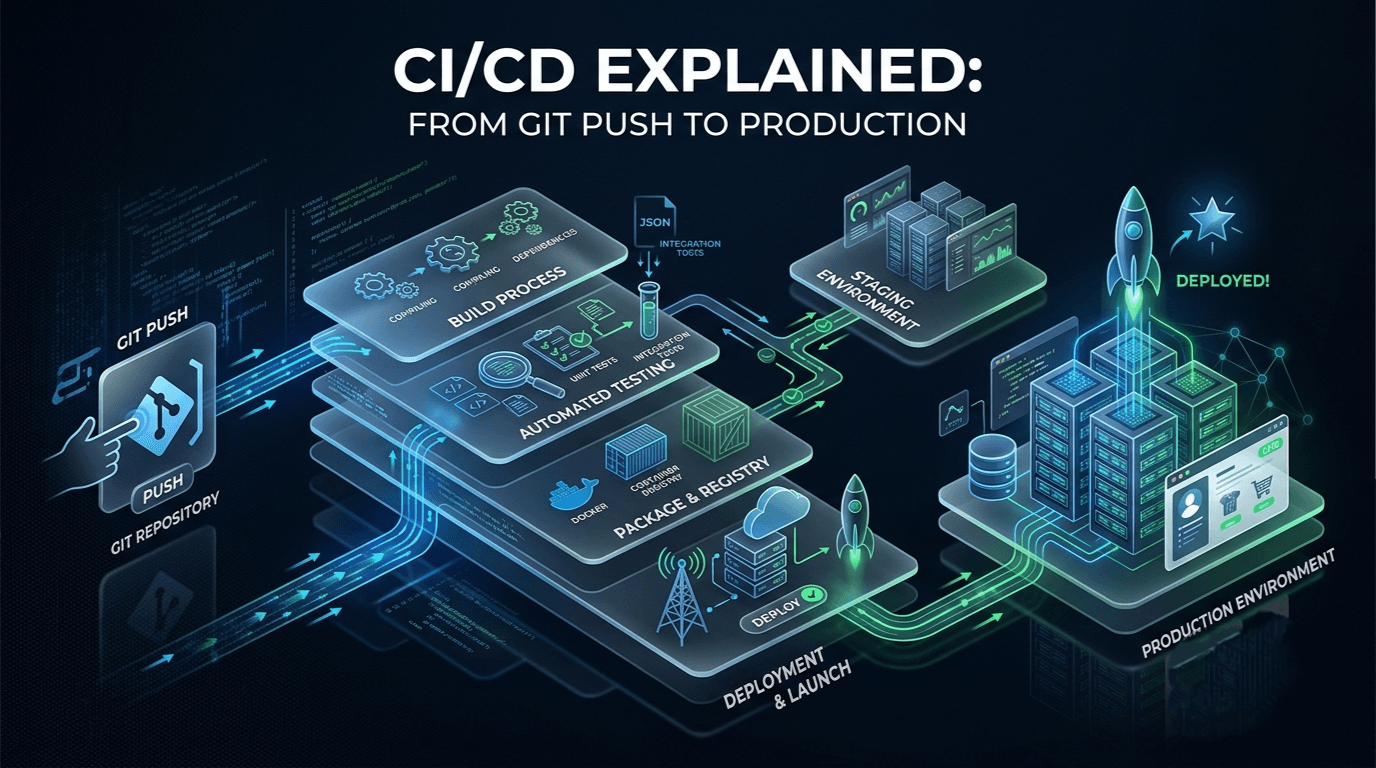
A simplified CI/CD workflow looks like this:
Developer writes code
        |
        v
    Git push
        |
        v
 Automated checks
        |
        v
 Tests and linting
        |
        v
 Application build
        |
        v
 Store build artifact
        |
        v
 Deploy to an environment
        |
        v
 Monitor the application
Each step can be automated so developers do not have to repeat the same manual process for every change.
Let's understand the three main terms.
1. Continuous Integration (CI)
Continuous Integration means frequently integrating code changes into a shared repository and automatically checking those changes.
Whenever a developer opens a pull request or pushes code, a CI workflow can:
- Install dependencies.
- Check code formatting and linting.
- Run automated tests.
- Check types.
- Build the application.
- Report whether the checks passed or failed.
For example, imagine a team of three developers working on the same Node.js application.
Without CI, one developer might introduce a change that breaks another developer's feature. The problem may remain unnoticed until someone manually tests the entire application.
With CI, automated checks run on the proposed changes. If a test fails, the team gets an early warning before merging the code.
The goal of CI is to detect integration problems early.
2. Continuous Delivery
Continuous Delivery means keeping the application in a state where it can be released whenever the team decides.
The pipeline automatically tests, builds, and prepares the application for release.
However, the final production release may still require a manual approval or an explicit deployment action.
For example:
- A developer pushes a feature.
- Automated tests pass.
- The application is built.
- The deployment artifact is prepared.
- A release manager approves production deployment.
- The application is released.
The important point is that the software is ready for release, even if the actual production deployment is not automatic.
3. Continuous Deployment
Continuous Deployment takes automation one step further.
Every change that successfully passes the required checks can be deployed to production automatically, without a separate manual release approval.
For example, a developer fixes a small bug. The pipeline tests the fix, builds the application, and deploys it to production when all required checks pass.
This requires strong automated testing, monitoring, security controls, and reliable rollback procedures.
Continuous Delivery vs. Continuous Deployment
| Feature | Continuous Delivery | Continuous Deployment |
|---|---|---|
| Automated testing | Yes | Yes |
| Automated build | Yes | Yes |
| Production release | Usually requires approval or a manual action | Automatically triggered by successful checks |
| Human release decision | Common | Not required for each release |
| Main benefit | Software stays ready to release | Changes reach users faster |
Both practices build on Continuous Integration.
What Is a CI/CD Pipeline?
A CI/CD pipeline is the automated sequence of steps that validates and delivers a software change.
Think of it as an assembly line in a factory.
A factory does not send every unfinished product directly to customers. Products pass through multiple checks before being packaged and shipped.
Similarly, a CI/CD pipeline checks your application before making it available to users.
A typical pipeline contains these stages:
Stage 1: Source Control
Developers commit their changes to Git and push them to a remote repository such as GitHub.
The repository event triggers the workflow.
Stage 2: Install Dependencies
The pipeline installs the dependencies required by the project.
For a Node.js application, this commonly means running:
npm ciThe npm ci command installs dependencies using the lockfile, making automated installations more consistent.
Stage 3: Code Quality Checks
The pipeline can run a linter, formatter check, or static type checker.
For example:
npm run lint
npm run typecheck
These commands work only if the corresponding scripts are defined in package.json.
Stage 4: Automated Testing
The pipeline runs unit, integration, or other automated tests.
npm testTests help identify bugs before the application is released.
A successful test suite does not guarantee that the application is bug-free, but it reduces the risk of known problems reaching production.
Stage 5: Build
The application is compiled or packaged into a deployable form.
For example:
npm run buildThe exact command depends on the project. A frontend application may produce static assets, while a backend application may need compiled JavaScript or a container image.
Stage 6: Store the Artifact
A build artifact is the output produced by the build process.
Examples include:
- Compiled application files.
- A frontend build directory.
- A packaged application archive.
- A Docker image stored in a container registry.
Keeping the artifact allows later pipeline stages to deploy the tested build rather than rebuilding an unrelated version of the code.
Stage 7: Deploy
The pipeline deploys the artifact to a target environment, such as staging or production.
The deployment method depends on the infrastructure. It might use a cloud provider, a container platform, a virtual machine, or a hosting service.
Stage 8: Verify and Monitor
After deployment, the team can run health checks and smoke tests to verify that the application is responding correctly.
Monitoring then helps detect errors, performance problems, and unexpected behavior.
Building a CI Workflow with GitHub Actions
GitHub Actions is a CI/CD automation platform integrated with GitHub repositories.
It allows you to define workflows using YAML files.
Let's create a basic CI workflow for a Node.js project.
Step 1: Create the Workflow File
Inside your project, create this file:
your-project/
├── .github/
│   └── workflows/
│       └── ci.yml
├── src/
├── package.json
├── package-lock.json
└── ...
GitHub automatically discovers workflow files inside .github/workflows/.
Step 2: Define the Workflow
Add the following content to ci.yml:
name: Node.js CI

on:
  push:
    branches: [main]
  pull_request:
    branches: [main]

permissions:
  contents: read

jobs:
  test:
    name: Test and Build
    runs-on: ubuntu-latest

    steps:
      - name: Checkout repository
        uses: actions/checkout@v4

      - name: Set up Node.js
        uses: actions/setup-node@v4
        with:
          node-version: 22
          cache: npm

      - name: Install dependencies
        run: npm ci

      - name: Run lint
        run: npm run lint

      - name: Run tests
        run: npm test

      - name: Build application
        run: npm run build
This example assumes the project defines lint, test, and build scripts in its package.json.
If your project uses different scripts, adjust the commands accordingly. You can also add a type-checking step when your project has a configured type checker.
Step 3: Understand the Workflow
Let's break down the important parts.
name
name: Node.js CIThis gives the workflow a readable name in the GitHub Actions interface.
on
on:
  push:
    branches: [main]
  pull_request:
    branches: [main]
The workflow runs when code is pushed to main or when a pull request targets main.
permissions
permissions:
  contents: read
This gives the workflow read access to repository contents. Workflows should receive only the permissions they need.
runs-on
runs-on: ubuntu-latestThis selects a GitHub-hosted Ubuntu runner, which is the machine that executes the job.
steps
Each step performs a task, such as checking out the repository, installing dependencies, running tests, or building the application.
The workflow runs the steps in order. If a required step fails, later steps normally do not run, and the job is marked as failed.
Step 4: Add Project Scripts
A simple Node.js project's package.json might contain scripts like these:
{
  "scripts": {
    "lint": "eslint .",
    "test": "node --test",
    "build": "tsc"
  }
}
These are examples, not universal defaults. They require the relevant tools and project configuration to be installed.
For example, tsc is appropriate for a TypeScript project configured to compile with TypeScript. A plain JavaScript application may use a different build command.
Once the workflow file is committed and pushed, open the Actions tab in your GitHub repository to inspect the run and its logs.
Extending CI into CD
The workflow above performs CI: it validates, tests, and builds the application.
To turn it into a delivery pipeline, add a deployment stage after the required checks pass.
A simplified flow is:
Pull request
     |
     v
Run tests and checks
     |
     v
Merge into main
     |
     v
Build release artifact
     |
     v
Deploy to staging
     |
     v
Run health checks
     |
     v
Production release
The production release can require approval for Continuous Delivery or proceed automatically for Continuous Deployment.
For a real deployment, configure a separate job with an appropriate needs dependency so it cannot run before the test job succeeds. Restrict production deployment to the intended branch or release event, and use a protected GitHub environment when approvals are required.
The deployment steps themselves depend on your hosting provider. Do not copy a generic deployment command into production without configuring its credentials, permissions, target environment, and rollback behavior.
How CI/CD Fits into a Docker Workflow
For applications packaged with Docker, a pipeline can build and publish a container image.
A typical workflow looks like this:
Git push
   |
   v
Run tests
   |
   v
Build Docker image
   |
   v
Scan image and dependencies
   |
   v
Push image to registry
   |
   v
Deploy the selected image
   |
   v
Verify application health
For example, a backend might be packaged as:
docker build -t my-api:1.0.0 .The pipeline can then scan the image, tag it with a unique version, and push it to a container registry.
In production, use an immutable image identifier or digest when possible. This makes it easier to identify exactly which build was deployed and to roll back to a previously tested image.
Docker packages the application; CI/CD automates the process of validating and delivering it. They solve related but different problems.
Deployment Strategies Used in CI/CD
Deploying an application is not just about copying files to a server. Teams also need to control the risk of releasing changes.
1. Rolling Deployment
A rolling deployment gradually replaces old application instances with new ones.
For example, if an application has five instances, the deployment system might update them in small batches rather than replacing all five at once.
Advantages:
- Gradual rollout.
- Often avoids a full service interruption.
- Useful when the infrastructure supports multiple instances.
Trade-offs:
- Old and new versions may run at the same time.
- The application must tolerate mixed versions during the rollout.
2. Blue-Green Deployment
Blue-green deployment uses two production-like environments.
- Blue: the currently active version.
- Green: the new version being prepared.
The new version is tested in the inactive environment. Once it is ready, traffic is switched to it.
If a serious problem occurs, traffic may be switched back to the previous environment, provided it remains healthy and compatible.
Advantages:
- Clear separation between old and new versions.
- Can enable fast traffic switching.
- Simplifies some rollback scenarios.
Trade-offs:
- May require additional infrastructure.
- Database changes can complicate switching back.
3. Canary Deployment
A canary deployment releases a new version to a small portion of traffic first.
For example:
95% of traffic -> Stable version
 5% of traffic -> New version
The team observes errors, latency, and other health metrics. If the new version behaves well, the rollout can gradually expand.
Advantages:
- Limits exposure to a potentially faulty release.
- Provides production feedback before a full rollout.
Trade-offs:
- Requires traffic routing and useful monitoring.
- Adds operational complexity.
No strategy guarantees zero downtime. The right choice depends on infrastructure, application design, traffic, and rollback requirements.
Secrets and Security in CI/CD
A pipeline often needs credentials to publish images, access cloud services, or deploy an application.
If these credentials are handled carelessly, the pipeline can become a path into production.
Follow these practices:
1. Never Hardcode Secrets
Avoid putting passwords, API tokens, private keys, or cloud credentials directly in source code or workflow files.
Use a secrets manager or protected repository or environment secrets where appropriate.
2. Apply Least Privilege
Give each workflow only the permissions required for its job.
For example, a workflow that only runs tests should not automatically receive permission to publish images or modify production infrastructure.
3. Protect Production Deployments
Use protected environments, required reviewers, and branch or tag restrictions for sensitive deployments.
A pull request from an untrusted contributor should not automatically receive access to production secrets.
4. Prefer Short-Lived Credentials
Where supported, use OpenID Connect (OIDC) to obtain short-lived cloud credentials instead of storing long-lived cloud access keys.
Configure the cloud trust policy carefully so only the intended repository, branch, or deployment environment can assume the required role.
5. Pin Third-Party Actions
The example workflow uses version tags such as @v4 for readability. For stronger supply-chain security, consider pinning third-party actions to verified full commit SHAs and updating them through a controlled process.
6. Keep Secrets Out of Logs
Do not print credentials or sensitive environment variables during debugging. Masking helps, but it should not be treated as a substitute for careful logging.
Common CI/CD Mistakes
Even an automated pipeline can be unreliable if it is designed poorly.
1. Running only the build
An application can build successfully and still contain broken behavior. Include appropriate automated tests and checks.
2. Deploying without health checks
A successful deployment command does not prove that the application is serving requests correctly. Verify the deployed service.
3. Rebuilding different artifacts for each environment
Rebuilding separately for staging and production can introduce differences. Prefer promoting the same tested artifact through environments when the workflow supports it.
4. Storing credentials in the repository
Secrets committed to Git can remain in its history. If a credential is exposed, revoke or rotate it and investigate its use.
5. Ignoring rollback
A deployment strategy should define what happens when a release fails. Know how to restore a previous application version and consider whether database changes are backward-compatible.
6. Making every pipeline step unnecessarily complicated
Start with essential checks, then add security scans, deployment automation, and advanced rollout strategies as the application requires them.
7. Treating green checks as proof of correctness
Passing tests provide confidence, not certainty. Production monitoring and feedback remain important.
How to Make a CI/CD Pipeline Faster
A slow pipeline can discourage developers from running checks frequently. A few improvements can help.
- Cache package-manager dependencies where appropriate.
- Run independent jobs in parallel.
- Avoid repeating expensive setup steps unnecessarily.
- Use reliable and appropriately sized runners.
- Run quick feedback checks early.
- Reuse build artifacts instead of rebuilding unnecessarily.
- Measure which steps consume the most time before optimizing.
For example, linting and unit tests can often run as independent jobs. A deployment job should still wait for every required check to succeed.
Caching should improve speed without making builds depend on stale or untrusted cached data.
A Practical CI/CD Checklist
Before relying on a pipeline for production releases, check the following:
- The workflow triggers on the intended events and branches.
- Dependencies install consistently.
- Linting and type checks run where applicable.
- Automated tests cover important behavior.
- The application builds successfully.
- Build artifacts are versioned and traceable.
- Secrets are stored securely.
- Workflow permissions follow least privilege.
- Production deployments have appropriate safeguards.
- Health checks verify the deployed application.
- Rollback procedures have been considered and tested.
- Logs and metrics help detect production problems.
Final Thoughts
CI/CD is more than a way to automate deployment. It creates a repeatable process for turning code changes into tested, traceable software releases.
Continuous Integration helps detect problems early. Continuous Delivery keeps software ready to release. Continuous Deployment automatically releases changes that pass the required checks.
You do not need a complex enterprise pipeline to get started. Begin with automated testing and builds, then introduce deployment automation, security controls, monitoring, and safer release strategies as your project grows.
For a student developer building Node.js APIs, React applications, or Dockerized services, a simple GitHub Actions workflow is a practical first step toward reliable software delivery.