Deploying a Node.js Backend on AWS EC2 with Nginx
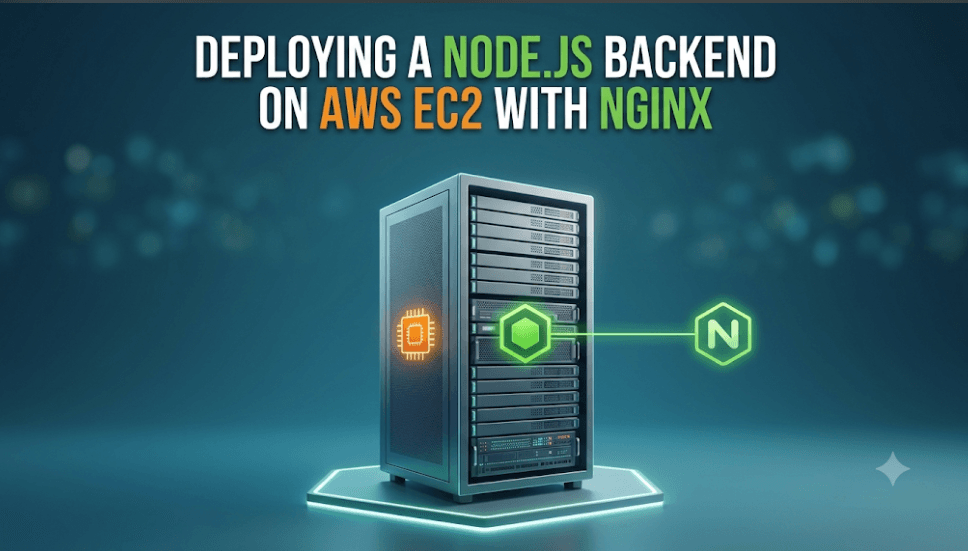
Deploying a Node.js Backend on AWS EC2 with Nginx
Writing a backend API is only one part of building a software application. To make it accessible to other users, you need to deploy it to a server and configure the infrastructure around it.
For Node.js developers, AWS EC2 provides virtual servers for running applications, while Nginx can act as a reverse proxy between incoming requests and your backend.
In this guide, we'll walk through the essential steps involved in deploying a Node.js backend on an EC2 instance.
1. Understanding the Architecture
Before touching the terminal, let's understand how the components fit together.
A typical deployment looks like this:
              User
                |
                v
          Internet Request
                |
                v
          AWS EC2 Instance
                |
                v
              Nginx
                |
                v
        Node.js Backend API
                |
                v
             Database
Each component has a specific responsibility:
- AWS EC2: Provides the virtual server where your application runs.
- Nginx: Receives HTTP requests and forwards them to the backend.
- Node.js: Executes your application code and handles API requests.
- Database: Stores application data, usually through a managed service or a separately configured database server.
The database is optional for this particular deployment workflow, but most real-world APIs require some form of persistent storage.
2. Launch an EC2 Instance
Start by opening the AWS Management Console and navigating to EC2.
Launch an instance with a supported Linux distribution, such as Ubuntu Server.
For a learning project, a small instance may be sufficient. Choose an instance type based on your application's requirements and AWS pricing.
During setup, configure the following:
- Select an appropriate Amazon Machine Image (AMI).
- Choose an instance type.
- Create or select an SSH key pair.
- Configure the network and security group.
- Allocate storage appropriate for your application.
Configure the Security Group
A security group controls inbound and outbound traffic for your instance.
For a basic web deployment, you may need these inbound rules:
| Port | Protocol | Purpose |
|---|---|---|
| 22 | TCP | SSH administration |
| 80 | TCP | HTTP traffic |
| 443 | TCP | HTTPS traffic |
Restrict SSH access to your own IP address whenever possible. Avoid opening port 22 to the entire internet.
You generally don't need to expose your Node.js application's internal port publicly if Nginx will receive the external requests.
3. Connect to the Server
After the instance starts, copy its public IP address and connect using SSH.
On a Linux or macOS terminal:
chmod 400 your-key.pem

ssh -i your-key.pem ubuntu@YOUR_EC2_PUBLIC_IP
Replace the key filename and public IP with your actual values.
The default username depends on the AMI. For Ubuntu images, it is commonly ubuntu.
Once connected, update the package index:
sudo apt updateInstall basic utilities if needed:
sudo apt install -y git curlYou now have a remote Linux environment in which to prepare your application.
4. Install Node.js
Your server needs a compatible Node.js runtime to execute the backend.
Choose a supported Node.js LTS version that matches your application's requirements. Install it using a trusted installation method, such as the official Node.js distribution instructions or a maintained version manager.
Verify the installation:
node --version
npm --version
The exact versions should be compatible with your project's dependencies.
Tip: Avoid installing an arbitrary runtime version just because it is available in your operating system's default package repository.
5. Deploy Your Backend Code
Clone your repository onto the server:
git clone YOUR_REPOSITORY_URLMove into the project directory:
cd YOUR_PROJECT_DIRECTORYInstall the project dependencies:
npm ciThis command expects a compatible package-lock.json.
Before continuing, make sure the application starts correctly on the server.
For example, if your project defines a start script:
npm startYour backend should listen on an appropriate port, such as 3000.
A typical Node.js server might use:
const express = require("express");

const app = express();
const PORT = process.env.PORT || 3000;

app.get("/health", (req, res) => {
  res.json({ status: "ok" });
});

app.listen(PORT, "127.0.0.1", () => {
  console.log(`Server listening on port ${PORT}`);
});
This example binds to the loopback interface because Nginx will run on the same machine.
If your existing backend already defines its routes and startup logic, use that implementation instead of creating a second server.
Test the endpoint locally on the EC2 instance:
curl http://127.0.0.1:3000/healthYou should receive a successful response from your application.
6. Keep the Backend Running with PM2
Running npm start manually is useful for testing, but it isn't a reliable way to manage a long-running application.
If your SSH session closes or the process exits, you need a proper process-management strategy.
PM2 is one option for managing Node.js applications.
Install it:
sudo npm install -g pm2Start the application using its npm script:
pm2 start npm --name my-api -- startCheck the process status:
pm2 statusInspect the logs:
pm2 logs my-apiSave the current process list:
pm2 saveTo configure startup after a server reboot, run:
pm2 startupFollow the command PM2 prints, then run pm2 save again if needed.
The generated startup command depends on the server environment, so use the exact instructions shown by PM2.
7. Install and Configure Nginx
Nginx will receive incoming HTTP requests and forward them to the Node.js application.
Install it:
sudo apt install -y nginxCheck that the service is running:
sudo systemctl status nginxCreate a site configuration:
sudo nano /etc/nginx/sites-available/my-apiAdd the following configuration:
server {
    listen 80;
    server_name YOUR_DOMAIN_OR_PUBLIC_IP;

    location / {
        proxy_pass http://127.0.0.1:3000;

        proxy_http_version 1.1;

        proxy_set_header Host $host;
        proxy_set_header X-Real-IP $remote_addr;
        proxy_set_header X-Forwarded-For $proxy_add_x_forwarded_for;
        proxy_set_header X-Forwarded-Proto $scheme;
    }
}
Replace YOUR_DOMAIN_OR_PUBLIC_IP with your domain or the appropriate server address.
Enable the configuration:
sudo ln -s /etc/nginx/sites-available/my-api /etc/nginx/sites-enabled/my-apiIf the default Nginx site conflicts with your configuration, disable it after confirming it is no longer needed.
Validate the configuration:
sudo nginx -tIf the test succeeds, reload Nginx:
sudo systemctl reload nginxNginx can now forward HTTP requests to your backend.
8. Understand What a Reverse Proxy Does
A reverse proxy accepts client requests and forwards them to an application server.
Without Nginx, a user might need to access your application through a URL containing its internal port.
With Nginx, users can access the application through the standard HTTP or HTTPS endpoint while Nginx forwards requests internally.
A reverse proxy can also help with:
- TLS termination
- Request routing
- Access logging
- Serving static files
- Handling multiple backend services
Nginx does not automatically make an application highly available. That requires additional architecture and operational work.
9. Connect Your Domain and Enable HTTPS
If you own a domain, create a DNS record that points to your EC2 instance's public IP address.
For a stable production endpoint, consider using an Elastic IP or another appropriate DNS target so that replacing or restarting infrastructure doesn't unexpectedly change the address users rely on.
Before enabling HTTPS, confirm that:
- The domain resolves correctly.
- Port 80 is reachable.
- Nginx is serving the expected site.
- Your security group permits the required traffic.
You can then configure TLS using a trusted certificate authority and a suitable certificate-management method, such as Certbot with a compatible Nginx setup.
After HTTPS is configured, verify that the certificate renews automatically and redirect HTTP requests to HTTPS where appropriate.
Never send production credentials or sensitive application data over plain HTTP.
10. Configure Environment Variables Securely
Applications often need environment-specific configuration, such as:
- Database connection strings
- Authentication secrets
- Third-party API keys
- Application environment settings
Do not hardcode secrets into your source code or commit them to Git.
For a small deployment, you may load a protected environment file through your process manager or application startup configuration.
For production environments, consider a dedicated secrets-management service and restrict access to sensitive values.
Also make sure your application handles missing configuration safely and does not expose secrets through logs or error responses.
11. Test the Deployment
Once the backend and Nginx are configured, test the complete request path.
Check the application process:
pm2 statusCheck Nginx:
sudo nginx -t
sudo systemctl status nginx
Test the backend locally:
curl http://127.0.0.1:3000/healthTest the public endpoint:
curl http://YOUR_DOMAIN_OR_PUBLIC_IP/healthIf you enabled HTTPS, test the HTTPS URL as well.
If something fails, inspect the relevant logs:
pm2 logs my-apisudo tail -f /var/log/nginx/error.logThese checks help distinguish an application problem from a reverse-proxy, network, or process-management issue.
12. Common Deployment Mistakes
Exposing every application port
Only expose the ports required for public access. Keep internal services private where possible.
Running the backend only in an SSH session
Use a process manager or a suitable service manager to keep the application running reliably.
Forgetting HTTPS
A publicly accessible API should use HTTPS when transmitting sensitive information or authenticating users.
Hardcoding secrets
Keep credentials out of source control and container images. Restrict access to production configuration.
Ignoring logs and monitoring
A successful deployment is not the end of the process. You also need to detect failures, monitor resource usage, and understand application errors.
Assuming one EC2 instance guarantees high availability
A single server remains a potential single point of failure. More resilient deployments require additional infrastructure, health checks, backups, and recovery planning.
Final Thoughts
Deploying a Node.js backend on AWS EC2 is a useful way to understand the connection between application code and infrastructure.
You learn how to provision a Linux server, install a runtime, run a backend process, configure a reverse proxy, manage network access, and prepare a domain for secure access.
These fundamentals are valuable even when you later move to Docker, managed container services, or Kubernetes.
A successful deployment isn't just an API that responds to requests. It's an application that can be configured, monitored, secured, and restarted reliably.