Linux Commands Every Backend Developer Should Know
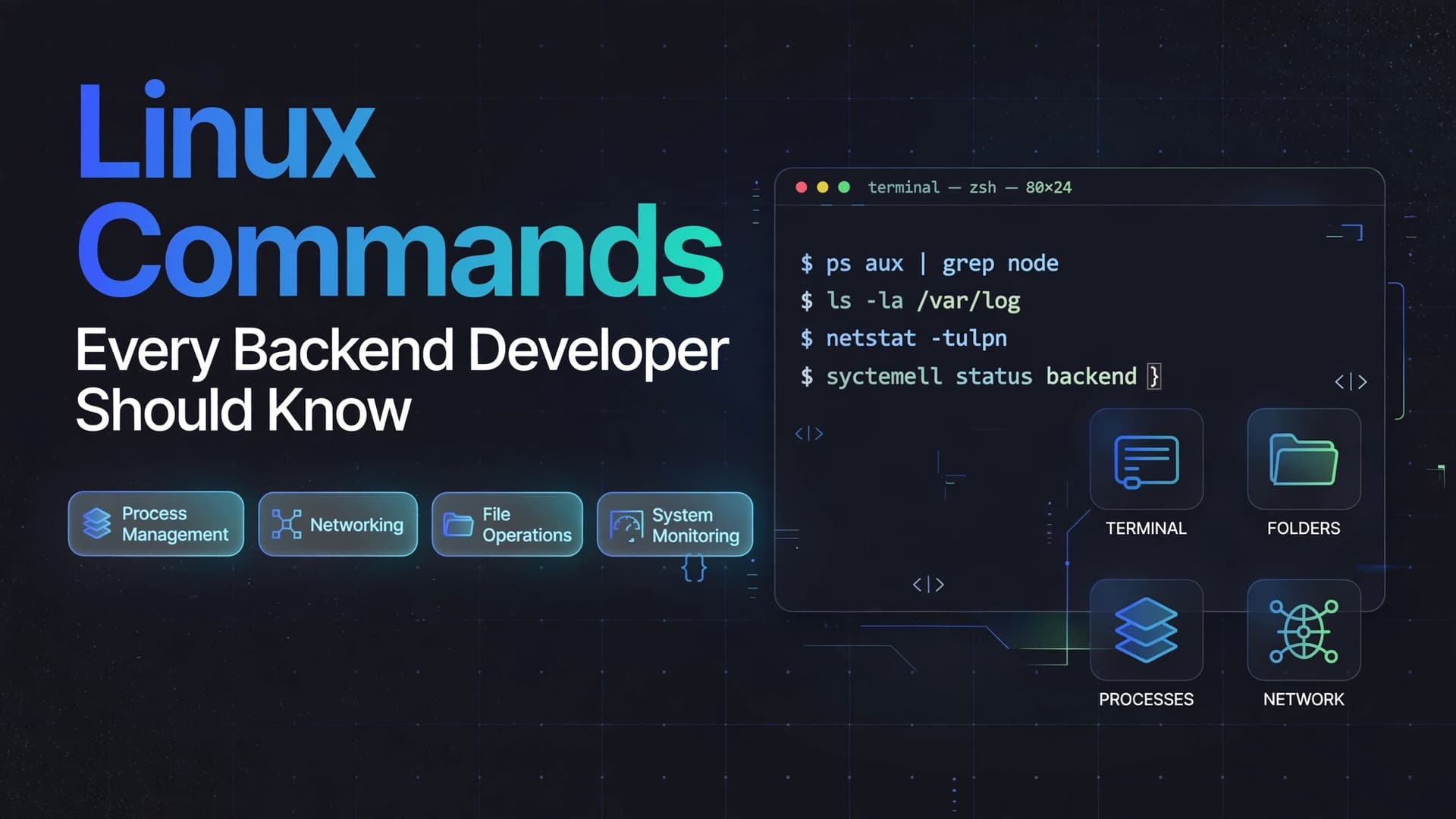
Linux Commands Every Backend Developer Should Know
Linux is everywhere in backend development. From cloud servers and Docker containers to databases and production APIs, developers regularly use Linux to deploy, monitor, and troubleshoot applications.
You do not need to memorize hundreds of commands to become comfortable with Linux. You need to understand the commands that solve everyday problems.
In this guide, we will explore practical Linux commands with examples that you can use while working on real backend applications.
1. Navigate the Filesystem
Before managing a server, you need to understand where you are and how to move between directories.
pwd — Print the Current Directory
Displays the absolute path of your current working directory.
pwdExample output:
/home/ubuntuls — List Files and Directories
ls
ls -l
ls -lalslists visible files and directories.ls -ldisplays detailed information.ls -laalso shows hidden files, such as.envand.gitignore.
cd — Change Directory
cd /var/www
cd ..
cd ~
cd /var/wwwmoves into the specified directory.cd ..moves one directory up.cd ~moves to your home directory.
find — Search for Files
find . -name "*.log"This searches the current directory and its subdirectories for files ending in .log.
To find a configuration file:
find /etc -name "nginx.conf"When to use these commands: Navigating project directories, finding configuration files, and locating application logs on a server.
2. Create, Copy, Move, and Delete Files
These commands help you manage application files and configuration.
mkdir — Create a Directory
mkdir my-app
mkdir -p logs/archive
The -p option creates missing parent directories when necessary.
touch — Create an Empty File
touch app.logcp — Copy Files
cp .env.example .env
cp app.log app-backup.log
The first command copies an example environment file to a new file. Remember to configure the actual values in .env before running your application.
mv — Move or Rename Files
mv old-name.txt new-name.txt
mv app.log logs/
rm — Remove Files
rm temporary.txtBe careful with deletion commands. Files removed using rm generally do not go to a recycle bin.
Avoid running commands such as rm -rf on unfamiliar paths, especially with elevated privileges. Verify the target before deleting anything.
3. Read and Inspect Files
Backend developers frequently inspect configuration files, error messages, and application logs.
cat — Display File Contents
cat package.jsonUseful for viewing small files.
less — Read Large Files
less /var/log/syslogUse the arrow keys to navigate. Press q to exit.
head — Read the Beginning of a File
head -n 20 app.logDisplays the first 20 lines.
tail — Read the End of a File
tail -n 50 app.logTo follow new log entries as they appear:
tail -f app.logThis is particularly useful when debugging a running backend application.
grep — Search for Matching Text
grep "ERROR" app.logSearch recursively through a directory:
grep -R "database connection failed" ./logsTo ignore uppercase and lowercase differences:
grep -i "error" app.logPractical example: If an API suddenly starts returning HTTP 500 responses, search the application logs for errors before changing the code.
4. Understand Processes and Resource Usage
A backend application runs as a process. If it becomes unresponsive or consumes excessive resources, these commands help investigate.
ps — List Processes
ps auxTo search for a Node.js process:
ps aux | grep nodeThe pipe (|) sends the output of one command to another command.
top — Monitor System Activity
topDisplays running processes and resource usage, including CPU and memory.
If your system has htop installed, it offers a more interactive process viewer:
htopkill — Send a Signal to a Process
kill 1234Replace 1234 with the actual process ID.
This sends the default SIGTERM signal, which allows the process an opportunity to shut down gracefully.
Use forceful termination only when necessary:
kill -9 1234Important: Do not terminate an unfamiliar process just because its name looks unusual. Identify the process and understand what it does first.
5. Check Disk and Memory Usage
A server may fail to start because the disk is full or available memory is insufficient.
df — Check Disk Space
df -hThe -h option displays sizes in a human-readable format.
du — Check Directory Size
du -sh /var/logThis displays the total size of the specified directory.
To inspect immediate subdirectories:
du -h --max-depth=1 /var/logfree — Check Memory Usage
free -hThis displays memory and swap information in a readable format.
uptime — Check System Uptime and Load
uptimeThis shows how long the system has been running and provides load averages.
Production tip: If an application stops responding, check disk space, memory, CPU usage, and logs before assuming the application code is responsible.
6. Inspect Network Connections
Backend developers need to understand which ports are listening and whether an API is reachable.
ss — Inspect Sockets and Listening Ports
ss -tulnThis displays TCP and UDP listening sockets without resolving service names.
To identify listening ports along with process information, where permissions allow:
sudo ss -tulpncurl — Send HTTP Requests
Check whether an API endpoint responds:
curl http://localhost:3000Display response headers:
curl -I https://example.comShow detailed connection information:
curl -v http://localhost:3000ping — Test Basic Network Reachability
ping example.comThis can help investigate basic network connectivity, but a failed ping does not necessarily mean a server is unavailable. Firewalls may block ICMP traffic.
dig — Inspect DNS Resolution
dig example.comIf dig is unavailable, you may need to install the relevant DNS utilities package for your Linux distribution.
Practical example: If your API works locally but not through your domain, check the DNS record, listening port, firewall rules, reverse proxy, and application logs.
7. Manage Services with systemd
Many Linux servers use systemd to manage background services.
systemctl — Check Service Status
sudo systemctl status nginxRestart a service:
sudo systemctl restart nginxReload configuration when supported:
sudo systemctl reload nginxEnable a service at boot:
sudo systemctl enable nginxStart a service immediately:
sudo systemctl start nginxA service restart and a configuration reload are not the same. Use the operation appropriate for the service and its configuration.
journalctl — Read Service Logs
sudo journalctl -u nginxShow recent entries:
sudo journalctl -u nginx -n 100Follow new log entries:
sudo journalctl -u nginx -fFor a service that fails during startup, its status and journal logs are often the best starting points.
8. Work with Permissions and Ownership
Linux uses file permissions to control who can read, modify, and execute files.
chmod — Change Permissions
chmod 644 config.json
chmod 755 deploy.sh
For a regular file, 644 typically means the owner can read and write, while group members and others can read.
755 typically means the owner can read, write, and execute, while group members and others can read and execute.
Use these permissions only when they match the intended access requirements.
chown — Change File Ownership
sudo chown ubuntu:ubuntu app.logThis changes the owner and group to ubuntu, assuming that account and group exist.
Security tip: Avoid using chmod 777 as a quick fix. It grants everyone read, write, and execute permissions, potentially exposing your application to unnecessary risk.
9. Connect to Remote Servers with SSH
SSH allows you to securely access a remote Linux server.
ssh ubuntu@your-server-ipReplace your-server-ip with the actual server address.
To use a specific private key:
ssh -i ~/.ssh/my-key.pem ubuntu@your-server-ipPrivate key files must have appropriate permissions. On many Linux systems, a private key can be restricted with:
chmod 600 ~/.ssh/my-key.pemNever share your private SSH key or commit it to a public repository.
Copy Files with scp
scp app.tar.gz ubuntu@your-server-ip:/home/ubuntu/This copies a local file to the remote server using SSH.
10. Manage Environment Variables
Applications often use environment variables for configuration.
Display one environment variable:
echo "$NODE_ENV"Set a variable for the current shell session:
export NODE_ENV=productionThe variable is available to commands launched from that shell, including child processes. It does not automatically persist after the session ends.
For long-running applications, configure environment variables through the application's service manager, deployment platform, or secret-management system.
Security note: Avoid printing secrets into shared terminal sessions or logs. Do not expose database passwords, access tokens, or private keys.
11. Combine Commands to Debug Faster
Linux becomes much more powerful when you combine commands.
Find Errors in Logs
grep -i "error" app.log | tail -n 20This searches for lines containing "error" and displays the last 20 matching lines.
Check Whether an Application Port Is Listening
sudo ss -tulpnLook for the expected port, such as 3000, if your Node.js server is configured to use it.
Inspect Disk Usage and Large Directories
df -h
du -sh /var/log
Use these together to investigate disk-space problems.
Follow Logs While Testing an API
In one terminal:
tail -f app.logIn another terminal:
curl -i http://localhost:3000/api/healthYou can observe whether the request produces new log entries or errors.
12. A Practical Backend Debugging Workflow
Imagine that your Node.js API is not responding after deployment.
Instead of randomly restarting everything, investigate systematically.
Step 1: Check the application process.
ps aux | grep nodeIf the app is managed by a process manager or service, inspect that manager's status too.
Step 2: Check whether the expected port is listening.
sudo ss -tulpnStep 3: Test the API locally on the server.
curl -i http://localhost:3000Use the correct port and endpoint for your application.
Step 4: Inspect application logs.
tail -n 100 app.logIf logs are managed by systemd, use journalctl instead.
Step 5: Check disk and memory usage.
df -h
free -h
Step 6: Inspect the reverse proxy if the API works locally but fails through the domain.
sudo systemctl status nginx
sudo journalctl -u nginx -n 100
This workflow helps narrow the problem down before you make changes.
13. Common Mistakes to Avoid
- Running commands with
sudowithout understanding why elevated privileges are required. - Using
chmod 777to bypass permission problems. - Deleting files or directories without verifying the path.
- Killing processes before identifying what they do.
- Assuming a failed ping means the server is offline.
- Editing configuration files without keeping a backup when appropriate.
- Restarting services without checking logs for the underlying problem.
- Assuming environment variables set in one shell automatically persist across reboots.
- Ignoring disk usage and log growth until the server runs out of space.
Linux commands are most useful when you understand what the output tells you, not when you memorize the syntax alone.
Conclusion
Linux is an essential tool for backend and cloud-native development. You do not need to master every command immediately.
Start with filesystem navigation, file inspection, process management, networking, service logs, permissions, and SSH. Practice these commands in a local Linux environment or a development server before using them in production.
As your experience grows, you will become better at diagnosing problems systematically rather than relying on guesswork.
The goal is simple: understand what is happening on your server, identify the cause of a problem, and make changes safely.