React Native Performance: Finding and Fixing Slow Screens
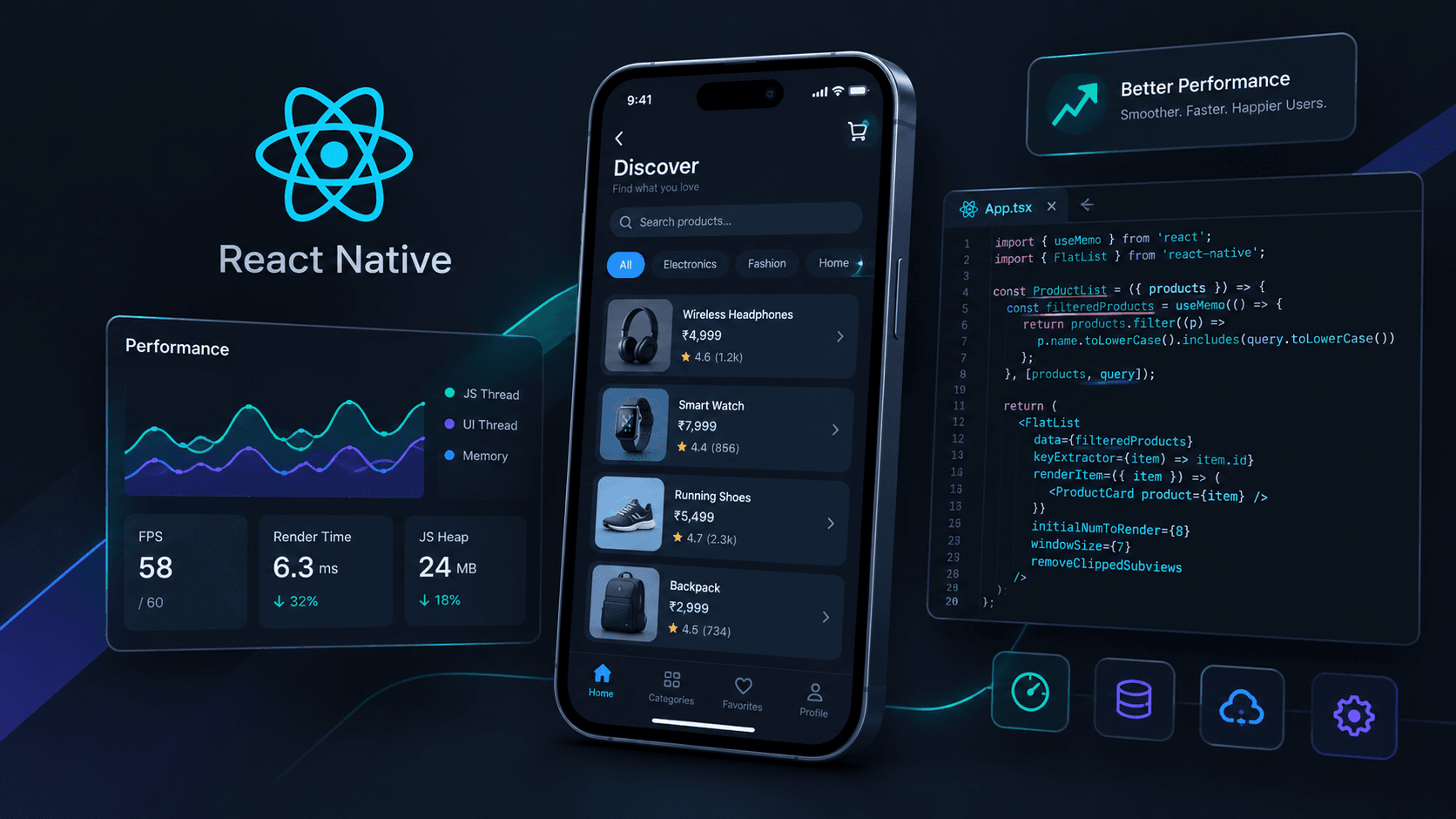
React Native Performance: Finding and Fixing Slow Screens
A React Native app can look beautiful and still feel slow.
You might notice a product list that stutters while scrolling, a button that responds late, a screen that takes too long to open, or an animation that drops frames when data changes.
The solution is not to add useMemo and useCallback everywhere. Good performance work starts with identifying the bottleneck, measuring it, and fixing the code responsible for the slowdown.
In this guide, we'll explore practical ways to diagnose and improve React Native performance using TypeScript, React Native DevTools, efficient list rendering, and better component design.
1. Understand What Makes a React Native App Slow
A mobile screen depends on several parts working together:
- JavaScript executes application logic and coordinates React updates.
- React calculates which components need to update.
- The native UI layer lays out and displays views.
- The network and database provide data.
- Images, animations, and other resources consume CPU and memory.
A slowdown can originate in any of these areas.
For example, imagine a product screen that takes three seconds to display its content. The cause might be a slow API response, expensive JavaScript processing, large images, or unnecessary component renders.
Optimizing React rendering won't fix a slow database query.
JavaScript thread vs. UI thread
React Native performance problems often involve the JavaScript thread or the native UI thread.
JavaScript thread: Runs application JavaScript, event handlers, and much of React's rendering work.
UI thread: Handles native view operations and drawing-related work. Platform rendering and animations can involve additional native components or threads.
If JavaScript is busy processing a large dataset, a press handler may be delayed. If the native UI is doing expensive layout or drawing work, scrolling and animations may stutter even when JavaScript is relatively idle.
The important lesson: identify which part is slow before choosing an optimization.
2. Measure Before Optimizing
Start by reproducing the issue on a real device.
Check these scenarios:
- Does the screen open slowly?
- Does scrolling become choppy with hundreds of items?
- Does typing lag in a search field?
- Does tapping a button trigger a visible delay?
- Does performance deteriorate after using the app for several minutes?
Record the behavior before making changes. After each meaningful change, test the same scenario again.
Use React Native DevTools
React Native DevTools is the supported debugging experience for React Native applications using Hermes. It includes component inspection, React profiling, and JavaScript debugging.
In supported versions, React Native 0.83 and later, the Performance panel can also record a timeline of JavaScript execution, React activity, and network events.
A practical workflow:
- Run the app in development mode.
- Open the Dev Menu and select Open DevTools.
- Reproduce the slow interaction.
- Use the Components and Profiler panels to inspect component renders.
- If available, record a Performance trace to identify expensive work.
- Fix one likely bottleneck and record the same interaction again.
You can also use Android Studio Profiler for Android-specific CPU and memory investigations, or Instruments on iOS.
Important: Development mode adds overhead. Confirm performance in a release build before concluding that a screen is genuinely slow.
Official references:
3. Avoid Unnecessary Component Re-renders
Consider a product list where every row displays a product name and price.
When the parent component updates, React may execute the row components again. This is not automatically a performance problem, but expensive rows repeated across a large list can make the experience worse.
Here's a simple example:
import { useState } from 'react';
import { Button, Text, View } from 'react-native';

function CounterScreen() {
  const [count, setCount] = useState(0);

  return (
    <View>
      <Text>Count: {count}</Text>
      <Button
        title="Increase"
        onPress={() => setCount((value) => value + 1)}
      />
      <ProductList />
    </View>
  );
}
Whenever count changes, CounterScreen renders again, and React also evaluates ProductList.
If ProductList is expensive and its props remain unchanged, you can consider memoizing it:
import { memo } from 'react';

const ProductList = memo(function ProductList() {
  return (
    // Your product list UI
    null
  );
});
This is a simplified illustration of the technique; replace the placeholder with the actual list UI.
memo can skip a render when a component's props are unchanged. It does not prevent updates caused by the component's own state or consumed context.
When should you use memo?
Consider it when:
- Profiling shows that a component renders unnecessarily.
- The component performs enough work for skipping that render to matter.
- Its props are usually unchanged between parent renders.
Avoid wrapping every component in memo without evidence. It adds complexity and is not a guarantee that rendering will be faster.
If your project uses React Compiler, it may automatically optimize many component re-renders and value or function reuse. Check your project's configuration before adding manual memoization everywhere.
4. Use FlatList for Large Collections
Rendering a huge array with ScrollView and map() creates all the rows in the render tree at once.
For large collections, React Native's FlatList is generally a better starting point because it virtualizes list content and renders items around the visible area as needed.
A basic implementation:
import { FlatList, Text, View } from 'react-native';

type Product = {
  id: string;
  name: string;
  price: number;
};

type ProductListProps = {
  products: Product[];
};

export function ProductList({
  products,
}: ProductListProps) {
  return (
    <FlatList
      data={products}
      keyExtractor={(item) => item.id}
      renderItem={({ item }) => (
        <View>
          <Text>{item.name}</Text>
          <Text>₹{item.price}</Text>
        </View>
      )}
    />
  );
}
Why stable keys matter
Use a unique, stable identifier such as product.id.
Avoid using array indexes as keys when items can be inserted, deleted, reordered, or filtered. Stable keys help React correctly associate rendered items with their data.
Optimize fixed-height rows with getItemLayout
If every row has a known, fixed height, getItemLayout lets FlatList skip measuring each item.
const ITEM_HEIGHT = 80;
const SEPARATOR_HEIGHT = 1;
const ITEM_LENGTH = ITEM_HEIGHT + SEPARATOR_HEIGHT;

<FlatList
  data={products}
  keyExtractor={(item) => item.id}
  renderItem={renderProduct}
  ItemSeparatorComponent={ProductSeparator}
  getItemLayout={(_, index) => ({
    length: ITEM_LENGTH,
    offset: ITEM_LENGTH * index,
    index,
  })}
/>
Here, each row is exactly 80 layout units tall and its separator is 1 unit tall. The separator is included in the item length.
Use this optimization only when those dimensions are correct for every item. Variable-height content needs a different approach.
5. Tune FlatList Carefully
React Native provides several properties that let you balance scrolling smoothness, rendering speed, and memory consumption.
| Property | Purpose | Trade-off |
|---|---|---|
initialNumToRender | Number of items rendered initially | Too few can leave blank space; too many increase startup work |
maxToRenderPerBatch | Number of items rendered in a batch | Larger batches can improve fill rate but consume more JS time |
windowSize | Number of viewport lengths kept in the render window | Larger windows use more memory |
getItemLayout | Supplies known item dimensions | Useful only when dimensions are predictable |
removeClippedSubviews | Detaches off-screen views from the native hierarchy | Can cause missing-content issues in some layouts |
For example, if you have measured your list and found that a smaller render window reduces memory usage without creating blank areas, you could test:
<FlatList
  data={products}
  keyExtractor={(item) => item.id}
  renderItem={renderProduct}
  initialNumToRender={8}
  maxToRenderPerBatch={8}
  windowSize={7}
/>
These are example values, not universal best settings. A feed with complex cards may need different values from a simple settings list.
Test rapid scrolling on a lower-end device before shipping your changes.
For exceptionally demanding lists, you can also evaluate libraries such as FlashList or Legend List. Compare their current compatibility and setup requirements with your React Native version before adopting one.
Reference: Optimizing FlatList Configuration
6. Keep List Items Lightweight
A list can still be slow even when it uses FlatList correctly.
Expensive calculations, deeply nested views, oversized images, and unnecessary state updates inside each row can all increase rendering cost.
A useful improvement is to extract a row into a small component:
import { memo } from 'react';
import { Text, View } from 'react-native';

type Product = {
  id: string;
  name: string;
  price: number;
};

type ProductRowProps = {
  product: Product;
};

export const ProductRow = memo(function ProductRow({
  product,
}: ProductRowProps) {
  return (
    <View>
      <Text>{product.name}</Text>
      <Text>₹{product.price}</Text>
    </View>
  );
});
Then use it inside your list:
const renderProduct = ({ item }: { item: Product }) => (
  <ProductRow product={item} />
);
This allows React to skip rendering a row when its product prop remains referentially unchanged.
However, if you recreate every product object on every update, or if the row consumes changing context, the optimization may not help as expected.
Also avoid performing expensive operations inside renderItem, such as sorting an entire collection or parsing large datasets for each row.
Prepare data outside the row-rendering path when possible.
7. Use useMemo and useCallback for Specific Problems
These hooks are often presented as universal performance fixes. They are not.
useMemo: Cache an expensive calculation
Suppose a screen filters thousands of products based on a search term.
import { useMemo, useState } from 'react';

const [query, setQuery] = useState('');

const filteredProducts = useMemo(() => {
  const normalizedQuery = query.trim().toLowerCase();

  return products.filter((product) =>
    product.name.toLowerCase().includes(normalizedQuery)
  );
}, [products, query]);
React can reuse the previous calculation result when both dependencies remain unchanged.
This is most useful when the calculation is expensive enough to justify caching. For a tiny array, ordinary filtering may be simpler and fast enough.
useCallback: Preserve a function reference
import { useCallback } from 'react';

const handleProductPress = useCallback(
  (productId: string) => {
    navigation.navigate('ProductDetails', {
      productId,
    });
  },
  [navigation]
);
This can help when passing the callback to a memoized child that benefits from receiving a stable function reference.
It does not automatically make the callback itself execute faster.
Rule of thumb: Profile first, then use memoization where it addresses a demonstrated problem. If React Compiler is enabled and handling these optimizations for you, manual hooks may not be necessary.
8. Optimize Images and Media
Images can affect memory use, loading time, and scrolling performance.
Common mistakes include:
- Downloading unnecessarily large images for small thumbnails.
- Rendering many images simultaneously without controlling their size.
- Decoding or processing images repeatedly.
- Animating image dimensions when a transform would work.
- Keeping large image data in JavaScript memory.
Practical improvements:
- Request appropriately sized image variants from your backend or image service.
- Set predictable image dimensions to reduce layout changes.
- Use an image-loading and caching solution appropriate to your project.
- Show placeholders while remote images load.
- Profile memory usage if the app becomes unstable after browsing many images.
For example:
import { Image, StyleSheet } from 'react-native';

<Image
  source={{ uri: product.thumbnailUrl }}
  style={styles.thumbnail}
  resizeMode="cover"
/>;

const styles = StyleSheet.create({
  thumbnail: {
    width: 72,
    height: 72,
    borderRadius: 8,
  },
});
The example uses React Native's built-in Image component. It does not, by itself, guarantee disk caching or optimized image delivery. Those behaviors depend on the platform and implementation.
9. Keep Heavy Work Away from Critical Interactions
Consider a search screen that filters a large dataset, transforms thousands of records, and updates several components every time the user types.
Even if the UI components are simple, the JavaScript thread can become busy.
Possible approaches include:
- Debouncing remote search requests.
- Moving suitable CPU-intensive work to a background-capable native or worker solution.
- Paginating data instead of loading everything at once.
- Performing expensive calculations only when their inputs change.
- Deferring nonessential work until after important interactions.
For example, a basic debounce can reduce how frequently a search function runs:
import { useEffect, useState } from 'react';

function useDebouncedValue<T>(value: T, delay = 300) {
  const [debouncedValue, setDebouncedValue] = useState(value);

  useEffect(() => {
    const timeoutId = setTimeout(() => {
      setDebouncedValue(value);
    }, delay);

    return () => clearTimeout(timeoutId);
  }, [value, delay]);

  return debouncedValue;
}
Usage:
const [query, setQuery] = useState('');
const debouncedQuery = useDebouncedValue(query, 300);

useEffect(() => {
  // Fetch or filter using debouncedQuery.
  // Cancel or ignore outdated requests when necessary.
}, [debouncedQuery]);
Debouncing reduces how often the dependent operation runs; it does not make an individual expensive operation faster. For network searches, also handle request cancellation, stale responses, loading states, and errors.
10. Do Not Confuse Development Performance with Production Performance
React Native development builds can behave differently from release builds because development checks, debugging tools, and logging add overhead.
Before releasing a performance fix:
- Build and install a release version of the app.
- Test on a physical device.
- Repeat the same interaction used during profiling.
- Check scrolling, input responsiveness, navigation, and memory.
- Verify that the improvement does not introduce visual bugs or incorrect data.
Remove unnecessary production logging, especially logs that serialize or print large objects. Avoid expensive logging in frequently executed render paths.
Do not disable warnings blindly to hide performance problems.
11. A Practical Performance Debugging Checklist
Use this checklist when a React Native screen feels slow.
- Reproduce the issue consistently.
- Identify whether the delay comes from rendering, JavaScript work, networking, images, or native UI operations.
- Profile component renders and inspect expensive operations.
- Use FlatList for large collections.
- Use stable keys for list items.
- Keep list rows lightweight.
- Apply
getItemLayoutonly when dimensions are known. - Use
memo,useMemo, anduseCallbackselectively. - Reduce unnecessary image downloads and memory use.
- Test on a physical device and in a release build.
- Measure again to confirm the improvement.
Conclusion
React Native performance is not about collecting optimization tricks. It is about understanding the source of a slowdown and choosing the smallest change that fixes it.
Start with measurement. Keep list items simple, use virtualization for large collections, optimize expensive calculations only when necessary, and verify improvements on real devices.
The best optimization is the one that makes the app measurably faster without making the code harder to maintain.